PlantUML to SVG Conversion Guide
Overview
The ODA Canvas project now supports converting PlantUML diagrams to local SVG files using the @plantuml-renderer GitHub Copilot agent and the scripts/plantuml-to-svg.js utility script.
Benefits
Performance:
Local SVG files load faster than remote PlantUML.com proxy API calls
No network latency for diagram rendering
Offline Availability:
Diagrams work without internet connection
Documentation is fully self-contained
Version Control:
SVG files tracked in git alongside PlantUML source
Visual diffs available in git tools
Historical diagram versions preserved
Reduced Dependencies:
No reliance on external PlantUML.com service availability
No risk of service changes or deprecation
Quick Start
Convert a Single File
# Using the conversion script directly
node scripts/plantuml-to-svg.js usecase-library/pumlFiles/exposed-API-create.puml

# Or using the Copilot agent
@plantuml-renderer convert usecase-library/pumlFiles/exposed-API-create.puml
Convert All Diagrams in a Directory
# Using the Copilot agent
@plantuml-renderer convert all in usecase-library/pumlFiles
Migrate Entire Workspace
# Convert all diagrams and update all markdown references
@plantuml-renderer migrate all diagrams
How It Works
Technical Process
Read PlantUML source - The script reads the
.pumlfile contentCompress - Uses zlib deflate compression to reduce size
Encode - Converts to base64url format (URL-safe base64)
Fetch SVG - Makes HTTP GET request to Kroki API:
https://kroki.io/plantuml/svg/{encoded}Validate - Checks SVG is valid (size > 0, contains
<svg>tags, proper XML structure)Save - Writes SVG file with same basename in same directory
Update markdown - Replaces PlantUML.com proxy URLs with local SVG paths
Kroki API
Kroki is a free, open-source service that converts text-based diagrams to images. It supports:
PlantUML, Mermaid, Graphviz, and many other formats
Multiple output formats (SVG, PNG, PDF)
HTTP GET and POST methods
Self-hosting option for enterprise use
Why Kroki?
Free for open-source projects
Reliable API with good uptime
No authentication required
Supports multiple diagram formats
Usage Examples
Example 1: Convert Single Diagram
# Convert exposed-API-create.puml to SVG
node scripts/plantuml-to-svg.js usecase-library/pumlFiles/exposed-API-create.puml
Output:
Converting: usecase-library/pumlFiles/exposed-API-create.puml
Encoding PlantUML source...
Fetching SVG from Kroki API...
Validating SVG content...
✓ Successfully created: usecase-library/pumlFiles/exposed-API-create.svg
  Size: 10819 bytes
Result:
Creates
usecase-library/pumlFiles/exposed-API-create.svgOriginal
.pumlfile unchanged
Example 2: Batch Convert Directory
Using PowerShell to convert all diagrams:
# Get all .puml files and convert each one
Get-ChildItem usecase-library/pumlFiles/*.puml | ForEach-Object {
    node scripts/plantuml-to-svg.js $_.FullName
}
Or using the Copilot agent:
@plantuml-renderer convert all in usecase-library/pumlFiles
Example 3: Update Markdown References
After converting diagrams, update markdown files to use local SVGs:
Before:
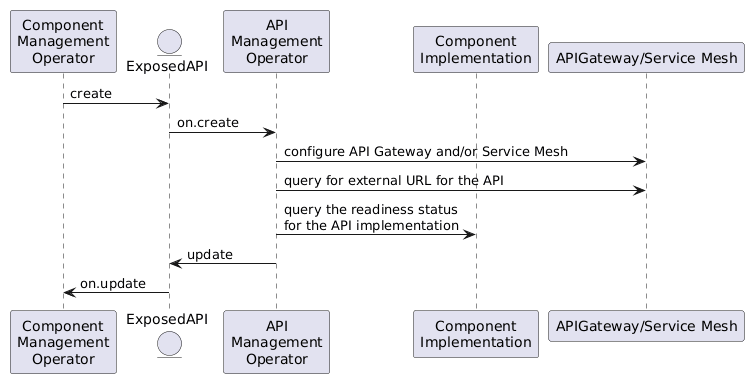
[plantUML code](pumlFiles/exposed-API-create.puml)
After:

[plantUML code](pumlFiles/exposed-API-create.puml)
The PlantUML source link is preserved for reference.
Directory Structure
PlantUML files are organized in pumlFiles/ directories:
oda-canvas/
├── usecase-library/
│   ├── pumlFiles/
│   │   ├── exposed-API-create.puml
│   │   ├── exposed-API-create.svg      ← Generated SVG
│   │   ├── manage-components-install.puml
│   │   └── manage-components-install.svg
│   ├── UC003-Configure-Exposed-APIs.md  ← References ./pumlFiles/*.svg
│   └── UC002-Manage-Components.md
├── docs/
│   ├── pumlFiles/
│   │   └── architecture-diagram.puml
│   └── architecture.md
└── source/
    └── operators/
        └── componentOperator/
            └── pumlFiles/
                └── workflow.puml
Relative Path Patterns
When updating markdown references, use these relative path patterns:
Markdown Location |
SVG Location |
Relative Path |
|---|---|---|
|
|
|
|
|
|
|
|
|
|
|
|
Troubleshooting
Issue: “Kroki API returned status 400”
Cause: Invalid PlantUML syntax
Solution:
Open the
.pumlfile and check for syntax errorsTest the PlantUML source at https://plantuml.com
Fix syntax errors and retry conversion
Issue: “Failed to fetch from Kroki: ENOTFOUND”
Cause: Network connectivity issue or Kroki service down
Solution:
Check internet connection
Verify Kroki is accessible: https://kroki.io
Retry after a few minutes
Check firewall/proxy settings
Issue: “SVG content is empty”
Cause: Kroki API returned empty response
Solution:
Check PlantUML source file is not empty
Verify file encoding is UTF-8
Try converting a simple test diagram first
Issue: “Validation failed: SVG content does not contain <svg tag”
Cause: Kroki returned error message instead of SVG
Solution:
Check PlantUML syntax is valid
Look at the generated
.svgfile for error messagesSimplify the diagram and test incrementally
Issue: Markdown references not updated
Cause: URL pattern doesn’t match or file not found
Solution:
Verify markdown file uses PlantUML.com proxy URL format
Check diagram basename matches in both URL and file
Ensure SVG file was successfully created
Use the
@plantuml-rendereragent to update references
Best Practices
1. Convert Diagrams After PlantUML Changes
Always regenerate SVG after modifying .puml files:
# After editing exposed-API-create.puml
node scripts/plantuml-to-svg.js usecase-library/pumlFiles/exposed-API-create.puml
2. Commit Both PUML and SVG Files
Always commit both source and generated files:
git add usecase-library/pumlFiles/exposed-API-create.puml
git add usecase-library/pumlFiles/exposed-API-create.svg
git commit -m "Update exposed API creation diagram"
3. Use Consistent Naming
PlantUML files:
kebab-case.pumlSVG files: Same name as PUML with
.svgextensionAlt text: Matches basename (e.g.,
exposed-API-create)
4. Validate Before Committing
Always check that generated SVGs render correctly:
# Open in browser to verify
start usecase-library/pumlFiles/exposed-API-create.svg

# Or check file size is reasonable
Get-Item usecase-library/pumlFiles/*.svg | Select Name, Length
5. Preserve PlantUML Source Links
Always keep the PlantUML source code link after the diagram:

[plantUML code](pumlFiles/diagram-name.puml)
This allows readers to view/edit the source PlantUML.
Integration with CI/CD
GitHub Actions Workflow
You can automate SVG generation in CI/CD:
name: Generate PlantUML SVGs

on:
  push:
    paths:
      - '**/*.puml'

jobs:
  generate-svgs:
    runs-on: ubuntu-latest
    steps:
      - uses: actions/checkout@v3

      - name: Setup Node.js
        uses: actions/setup-node@v3
        with:
          node-version: '18'

      - name: Convert PlantUML to SVG
        run: |
          find . -name "*.puml" -type f | while read file; do
            node scripts/plantuml-to-svg.js "$file"
          done

      - name: Commit generated SVGs
        run: |
          git config user.name "GitHub Actions"
          git config user.email "actions@github.com"
          git add **/*.svg
          git commit -m "Auto-generate SVG diagrams" || true
          git push
Pre-commit Hook
Add to .git/hooks/pre-commit:
#!/bin/bash
# Auto-generate SVGs from modified PUML files

for file in $(git diff --cached --name-only --diff-filter=ACMR | grep '\.puml$'); do
  if [ -f "$file" ]; then
    echo "Generating SVG for $file"
    node scripts/plantuml-to-svg.js "$file"
    svg_file="${file%.puml}.svg"
    git add "$svg_file"
  fi
done
Migration Strategy
Phase 1: Generate SVGs (No Breaking Changes)
Generate SVG files for all diagrams without updating markdown:
@plantuml-renderer convert all in usecase-library/pumlFiles
@plantuml-renderer convert all in docs/pumlFiles
@plantuml-renderer convert all in source/operators/pumlFiles
Commit all SVG files. Markdown still uses PlantUML.com proxy URLs (backward compatible).
Phase 2: Update Markdown References
Update markdown files to use local SVGs:
@plantuml-renderer migrate all diagrams
Review changes and commit. Diagrams now load from local SVG files.
Phase 3: Establish Workflow
Add to documentation guidelines:
Always generate SVG after modifying PlantUML
Commit both
.pumland.svgfiles togetherUse
@plantuml-rendereragent for new diagrams
Command Reference
Node.js Script
# Basic usage
node scripts/plantuml-to-svg.js <path-to-puml-file>

# Example
node scripts/plantuml-to-svg.js usecase-library/pumlFiles/exposed-API-create.puml
Exit codes:
0- Success1- Failure (check error message)
Copilot Agent Commands
# Convert single file
@plantuml-renderer convert <file-path>

# Convert directory
@plantuml-renderer convert all in <directory-path>

# Full workspace migration
@plantuml-renderer migrate all diagrams
PowerShell Batch Commands
# Convert all PUML files in a directory
Get-ChildItem usecase-library/pumlFiles/*.puml | ForEach-Object {
    node scripts/plantuml-to-svg.js $_.FullName
}

# Find PUML files without corresponding SVG
Get-ChildItem -Recurse -Filter "*.puml" | Where-Object {
    -not (Test-Path ($_.FullName -replace '\.puml$', '.svg'))
} | ForEach-Object { Write-Host "Missing SVG: $_" }

# Check SVG file sizes
Get-ChildItem -Recurse -Filter "*.svg" | Select-Object Name, Directory, Length | Format-Table
Additional Resources
Kroki Documentation: https://kroki.io
PlantUML Documentation: https://plantuml.com
Agent Definition:
.github/agents/plantuml-renderer.mdConversion Script:
scripts/plantuml-to-svg.jsODA Canvas Documentation Agent:
docs/custom-copilot-documentation-agent.md
Support
For issues or questions:
Check this guide’s troubleshooting section
Review the agent definition:
.github/agents/plantuml-renderer.mdOpen an issue in the GitHub repository
Contact the documentation team
Last Updated: December 10, 2025
Version: 1.0.0